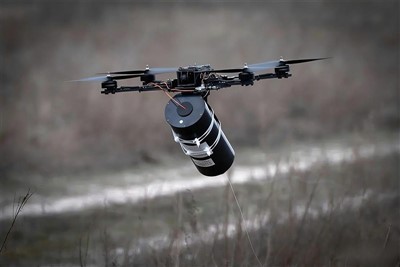

As a supplier of thermal imaging lenses, I understand the importance of keeping your equipment up - to - date. Firmware upgrades play a crucial role in enhancing the performance, functionality, and security of your thermal imaging lens. In this blog, I will guide you through the process of upgrading the firmware of a thermal imaging lens.
Why Upgrade the Firmware?
Before delving into the upgrade process, it's essential to understand why firmware upgrades are necessary. Firstly, firmware updates often bring new features to the thermal imaging lens. These could include improved image processing algorithms, which result in clearer and more detailed thermal images. For example, an updated firmware might introduce a new color palette option that allows you to better distinguish temperature differences in your thermal images.
Secondly, firmware upgrades can enhance the stability and reliability of the lens. Developers constantly work on fixing bugs and glitches that may cause the lens to malfunction. By upgrading the firmware, you can ensure that your thermal imaging lens operates smoothly and provides accurate results.
Lastly, security is a major concern in today's digital age. Firmware updates often include security patches that protect your thermal imaging lens from potential cyber threats. This is especially important if your lens is connected to a network or used in sensitive applications.
Prerequisites for Firmware Upgrade
Before you start the firmware upgrade process, there are several prerequisites that you need to meet.
- Check Compatibility: Ensure that the firmware upgrade is compatible with your specific thermal imaging lens model. Different models may require different firmware versions, so it's crucial to check the manufacturer's website for the correct version.
- Backup Data: Although the firmware upgrade process usually does not affect your stored data, it's always a good practice to back up any important images or settings on your thermal imaging lens. This can be done by transferring the data to a computer or an external storage device.
- Charge the Battery: Make sure that your thermal imaging lens has sufficient battery power. A sudden power outage during the firmware upgrade process can cause serious damage to the lens. It's recommended to charge the battery to at least 80% before starting the upgrade.
- Stable Internet Connection: If the firmware upgrade is downloaded from the internet, a stable and reliable internet connection is required. A weak or interrupted connection may result in an incomplete download, which can lead to issues during the upgrade process.
Step - by - Step Guide to Firmware Upgrade
Step 1: Find the Latest Firmware Version
The first step is to find the latest firmware version for your thermal imaging lens. You can do this by visiting the manufacturer's official website. On the website, look for the support or downloads section. Here, you will usually find a list of firmware updates for different models of thermal imaging lenses. Enter your lens model number to find the appropriate firmware version.


Step 2: Download the Firmware
Once you have identified the correct firmware version, click on the download link. The download process may take some time, depending on the size of the firmware file and the speed of your internet connection. Make sure to save the firmware file in a location where you can easily find it later, such as your desktop or a dedicated folder.
Step 3: Prepare the Thermal Imaging Lens
Before installing the firmware, you need to prepare your thermal imaging lens. Turn off the lens and connect it to your computer using a USB cable. Make sure that the connection is secure and that your computer recognizes the lens.
Step 4: Install the Firmware
Open the firmware file that you downloaded earlier. Follow the on - screen instructions provided by the firmware installation wizard. The installation process may vary depending on the manufacturer and the type of thermal imaging lens. In most cases, you will need to select the appropriate device and click on the "Install" button.
During the installation process, do not disconnect the thermal imaging lens from the computer or turn off the power. The installation may take several minutes, so be patient and wait for the process to complete.
Step 5: Verify the Upgrade
Once the firmware installation is complete, turn on the thermal imaging lens. Check if the new features and improvements are working as expected. You can also refer to the release notes provided by the manufacturer to see what changes have been made in the new firmware version.
Troubleshooting Common Issues
Even with careful preparation, you may encounter some issues during the firmware upgrade process. Here are some common problems and their solutions:
- Incomplete Download: If the firmware download is interrupted or incomplete, try downloading the file again. Make sure that your internet connection is stable and that you have enough storage space on your computer.
- Installation Error: If you receive an error message during the installation process, check the compatibility of the firmware version with your thermal imaging lens. You can also try restarting your computer and the lens and then repeating the installation process.
- Lens Malfunction: If the thermal imaging lens malfunctions after the firmware upgrade, try resetting the lens to its factory settings. This can usually be done through the lens's menu options. If the problem persists, contact the manufacturer's customer support for further assistance.
Related Drone Accessories
In addition to thermal imaging lenses, we also offer a range of high - quality drone accessories. If you are interested in enhancing your drone's capabilities, you might want to check out our Drone Water Pump, Drone Remote Controller, and Long - endurance Battery for Drones. These accessories can significantly improve the performance and functionality of your drone.
Contact for Purchase and Negotiation
If you are interested in purchasing thermal imaging lenses or any of our other products, or if you have any questions about firmware upgrades or product features, we encourage you to reach out to us. Our team of experts is ready to assist you with your needs and provide you with the best solutions.
References
- Manufacturer's user manual for thermal imaging lenses
- Online resources and forums related to thermal imaging technology
- Technical documentation provided by the firmware developers